Release notes Luceda Photonics Design Platform 2026.09.0
Welcome to the 2026.09.0 release!
Discover the key highlights:
Irys DRC - Run a targeted subset of a foundry deck, review a report that also lists passing rules, inspect violations on foundry-styled layers loaded from a
.lypfile, and keep dense layouts responsive with boundary simplification.Layout Visualizer navigation - Inspect instance and cell hierarchy more clearly, customize keyboard shortcuts, and customize instance highlighting under the mouse.
P&R improvements - Skip redundant bundle fanout with
i3.NoFanout, mix relative and absolute placement, and get more reliable bend routing and path reports.Canvas schematic connectivity & simulation - Highlight terms on hover, expose unconnected terms from the context menu, and run S-matrix and time-domain codelets through a SPICE file.
For a full list of features, improvements, and bug fixes, please consult the changelog. For known behavioral changes, see the backwards compatibility notes.
Irys DRC
Irys DRC, introduced in 2026.03 and extended in 2026.06, gives you finer control over which rules run, and a clearer and more responsive view of the layout while you review the result.
Run only the rules you need.
In the Luceda Layout Visualizer you can select and deselect individual rules when configuring a run, in addition to rule groups.
The same functionality is available from Python through irys.drc.run_drc() with include_rules.
Running a subset of a foundry deck keeps check times short while you resolve violations incrementally.
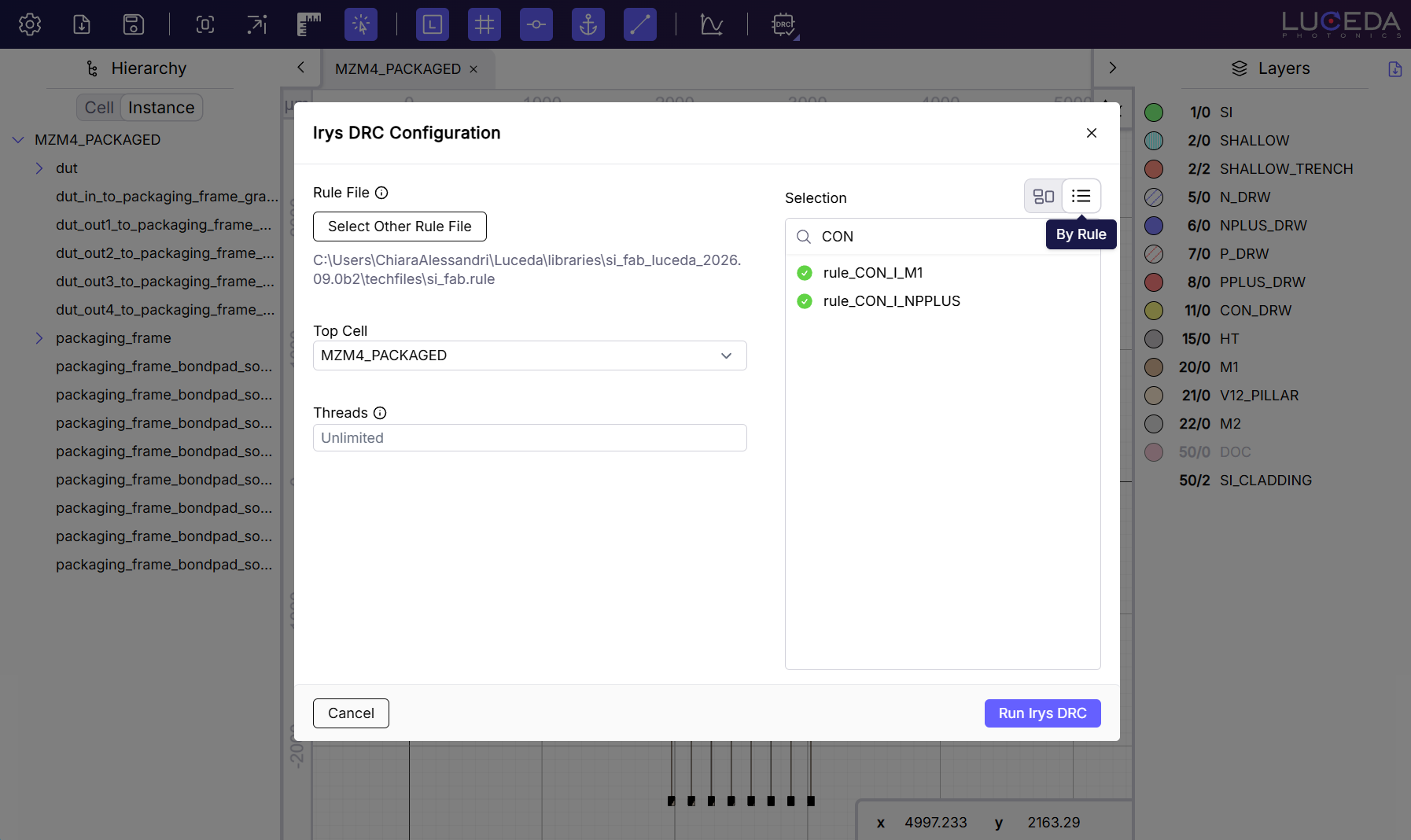
Individual rule selection when running Irys DRC.
Read the report at a glance. The DRC report lists checked rules that have no violations, so a clean result is visible rather than an empty list. You can filter the report to show only violations, or only non-waived violations.
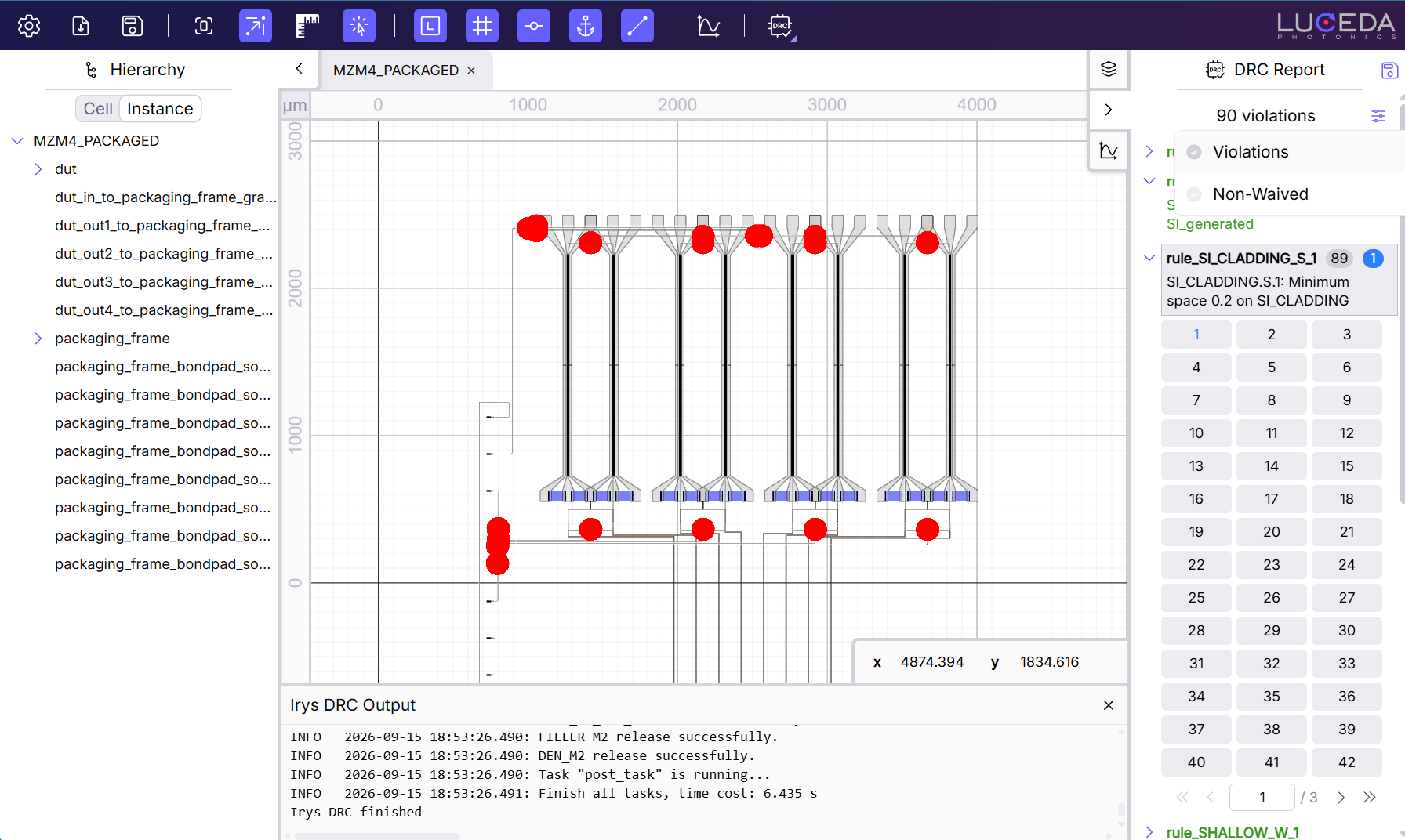
Filtering the Irys DRC report for waived or non-waived violations.
Review violations on foundry-styled layers.
Load a KLayout layer properties file (.lyp) from the “Layers” tab to apply foundry layer names and styles to the layout you are checking.
Layers are matched on GDSII layer and datatype, so violation markers land on layers that are named and colored the way the foundry describes them.
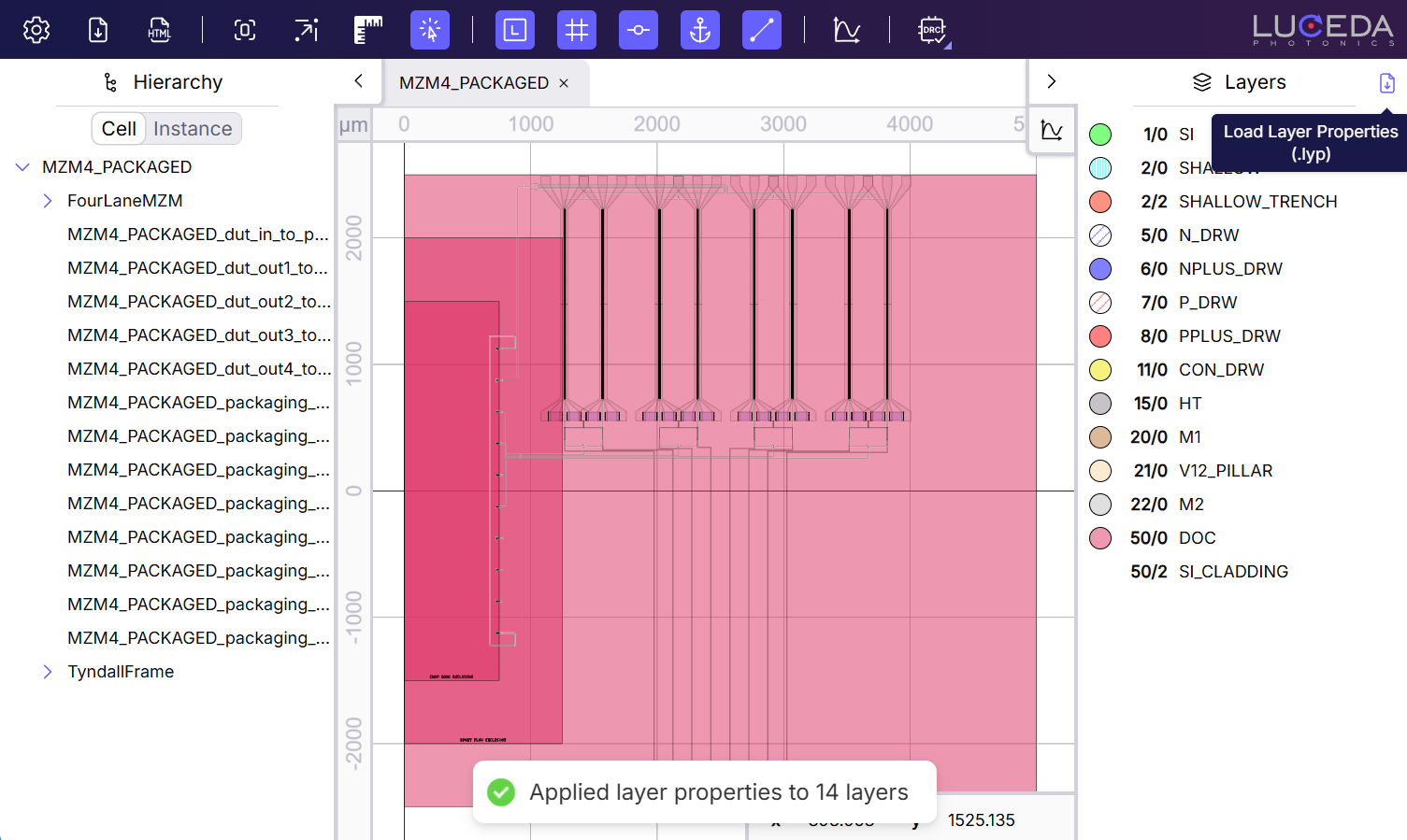
Load layer properties after loading a GDSII file.
Keep dense layouts responsive.
Reviewing a full-chip DRC run means panning and zooming through a lot of geometry.
A new Boundary Simplification Factor setting reduces boundary detail to improve rendering performance.
It is off by default (0); values between 1 and 100 are safe for most layouts, and 20 is a good starting point for large ones.
The setting is applied after the layout is reloaded.
Resources:
Layout Visualizer navigation and inspection
The Luceda Layout Visualizer adds tools for navigating and inspecting large layouts.
Instance hierarchy: A new instance hierarchy view sits alongside the reworked cell hierarchy, so you can see where a cell is used and control visibility more intuitively.
Keyboard shortcuts: View and change shortcuts from the settings menu.
Highlighting: Instance highlighting is clearer and can be turned on or off with Highlight Instance Under Mouse.
Layer properties (.lyp) loading and the boundary simplification setting are described in the Irys DRC section above; both apply to any layout you open, not only to DRC runs.
You can also visualize a i3.Boundary or i3.ElementList directly with .visualize(), without wrapping it in a full layout first.
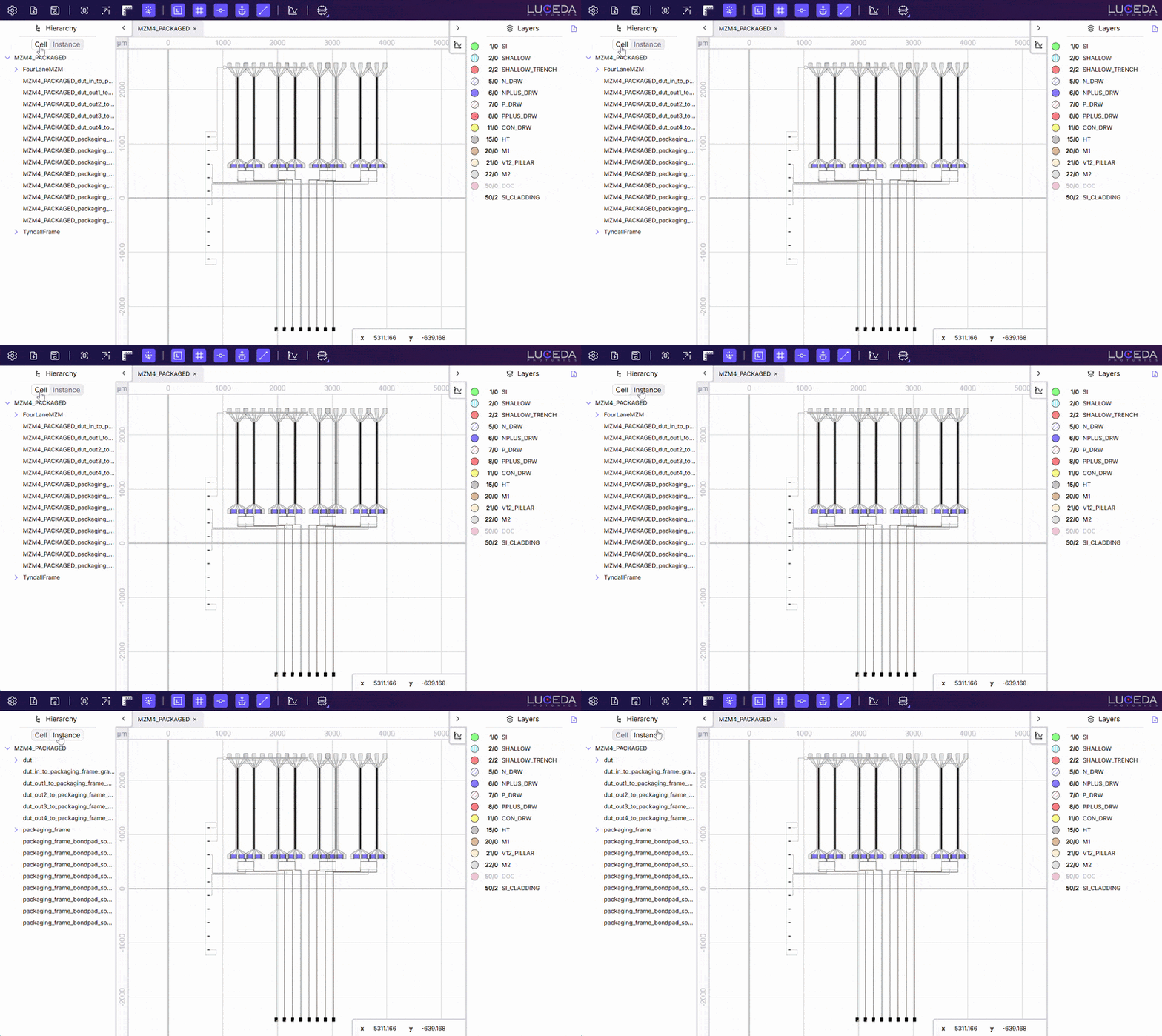
Cell and instance hierarchies in the Luceda Layout Visualizer.
P&R improvements
Placement and routing in this release reduce extra geometry in bundles, make mixed constraints easier to write, and make bend connectors more robust.
When ports are already uniformly spaced, a bundle fanout stage often adds extra bends without changing the route.
i3.NoFanout skips that stage on i3.ConnectManhattanBundle (and related bundle connectors), which reduces optical loss and footprint.
Use it when port pitch already matches the bundle, and keep a regular fanout (for example i3.SBendFanout) on the side that still needs gathering or scattering.
Other P&R updates:
i3.Placerelative_toaccepts mixed relative and absolute coordinates in a tuple (int, float, orNoneon one dimension), so one axis can stay relative while the other is fixed.i3.ConnectBendandi3.ConnectSBendgenerate route points more reliably. Missing transitions onConnectSBendnow surface a proper error in non-strict mode, and generated connection names follow the same scheme as other connectors.i3.path_reportcan list all traces, not only the shortest, withcomprehensive_report=True.
If you compare waveguide point lists or connection names against older releases, see i3.ConnectBend routing precision and i3.ConnectSBend connection name.
Resources:
Placement and routing guide: Placement and routing specifications
Connector reference: Connector Reference
IPKISS Canvas
Schematic editing and codelet simulation in Canvas are aligned with the SPICE-based circuit simulation flow.
Unconnected terms: From the context menu of selected symbol instances, or of the whole schematic, you can expose unconnected terms so they become available for connection.
Term highlighting: Terms highlight on hover, which makes it easier to complete nets. External terms can be selected by clicking them.
Time-domain codelets: Time-domain simulations started from Canvas codelets go through a SPICE file by default, consistent with the Caphe SPICE workflow introduced in 2026.03.
Default circuit template: New circuits use
i3.Circuitwithi3.ConnectManhattan/i3.ConnectElectricalinstead ofi3.ConnectLogical.
The S-matrix Visualizer and the SPICE parser are faster, so large parameter sweeps and plots with many traces stay interactive.
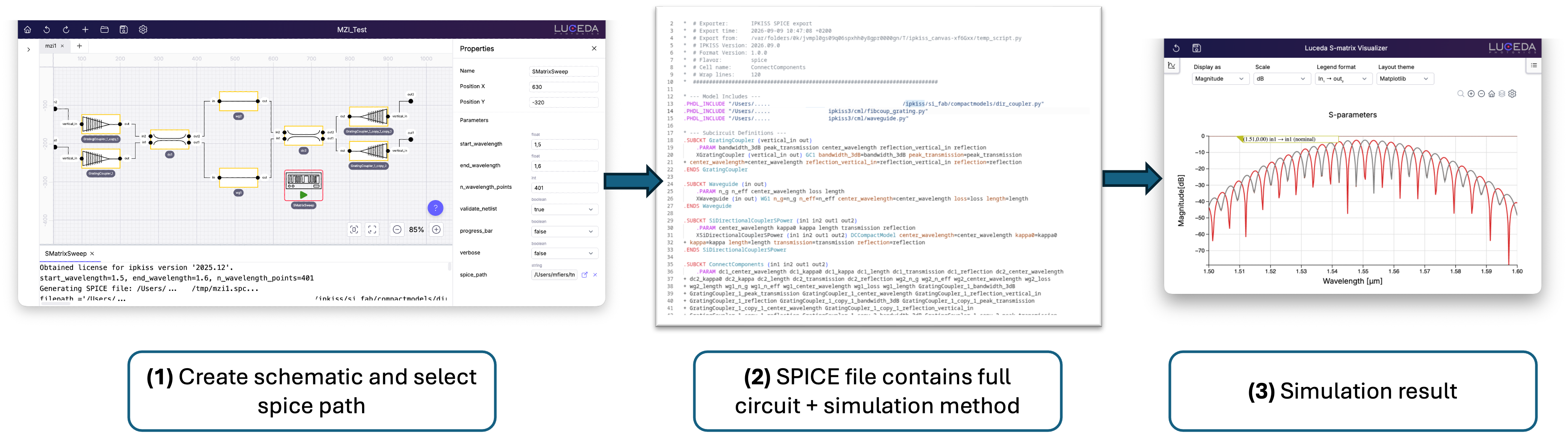
Create a schematic and select a SPICE path, export the circuit and simulation setup to a SPICE file, and inspect S-parameter results in the S-matrix Visualizer.
Resources:
Circuit simulation: Running circuit simulations
SPICE sample: A SPICE-Based Simulation Workflow in IPKISS