3.6.1. Using Git with PyCharm
3.6.1.1. Introduction
This tutorial provides a step-by-step guide on how to use Git for version control within the PyCharm IDE. It is intended as a practical example and assumes you are familiar with the version control concepts explained in the Version Control for Managing a User Library tutorial.
3.6.1.2. Configuration in Pycharm
First, visit the download page and install Git on your system. Next, open your library in PyCharm and in the top navigation bar select VCS >> Enable version control integration…
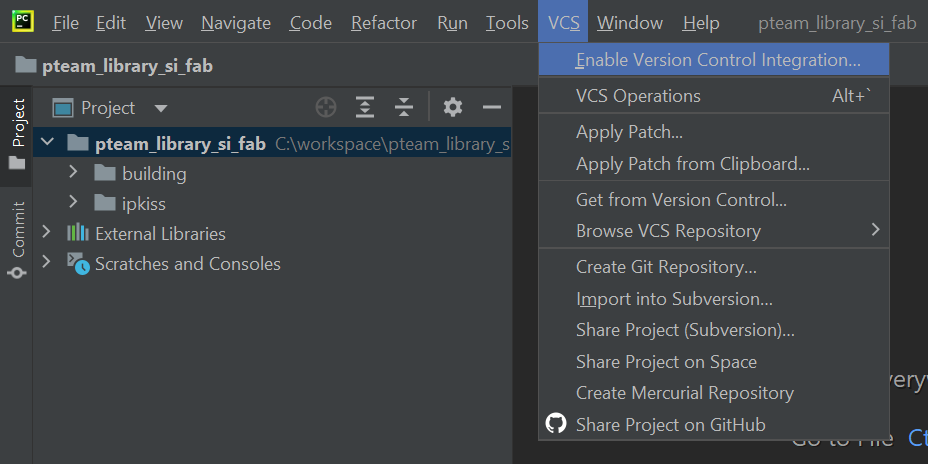
PyCharm menu to enable Git version control integration.
Select Git and press OK. Git has now upgraded the library to a ‘repository’ and is able to track changes inside.
Note
To get the most flexibility, version control systems are often used via the terminal. Every operation in this tutorial has its own command in the terminal. You can create a repository from scratch by navigating to the library directory and executing git init. A more common scenario is to start contributing to an existing project. This is done by ‘cloning’ the repository with git clone. For example:
cd C:\workspace
git clone https://github.com/luceda-photonics/pteam_library_si_fab.git
It’s often not necessary to track the changes of every file in the library. For example, PyCharm automatically creates a folder named .idea in the library and its contents are not relevant to us. To tell Git not to track these files, place a .gitignore file in the library repository. In this file we notify Git to ignore certain file paths, file extensions, directories, etc. For more information on the syntax, visit the gitignore reference page.
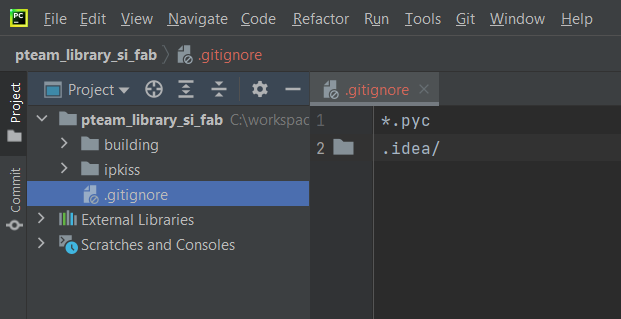
Example .gitignore file in PyCharm
3.6.1.3. Saving your work
In Git, saving changes is done by making a ‘commit’. As a first step, we will save the current state of the P-Team library. Go to Git >> Commit…, then select all the files you want to to stage for your commit. Enter a short descriptive commit message so you and your team understand what has changed.
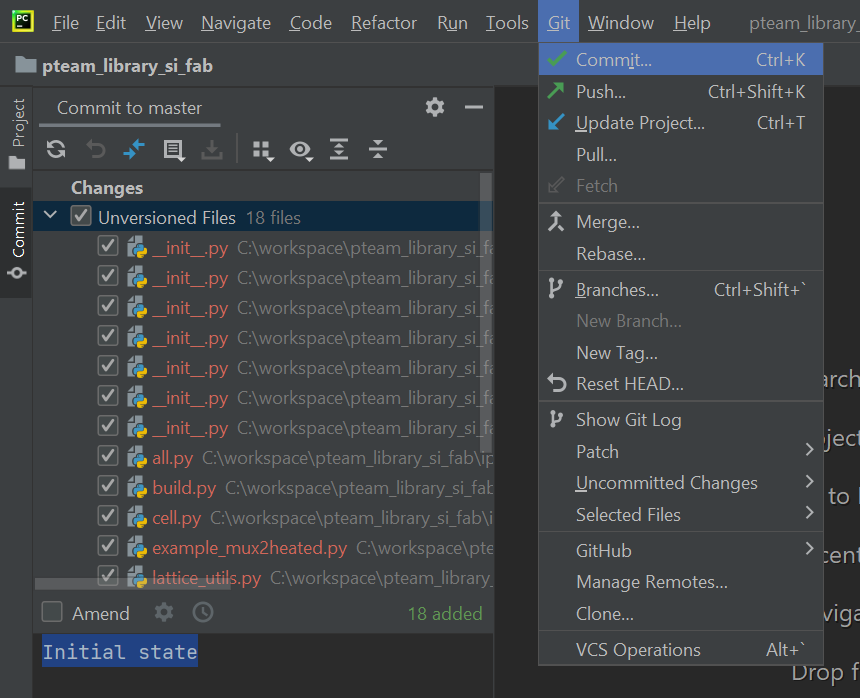
PyCharm’s commit dialog showing selected files and commit message input.
Click Commit. You can view the commit history by clicking the Git tab in the bottom-left navigation bar.
Now, suppose you want to change the default horizontal spacing of the splitter tree.
In components\splitter_tree\cell.py, change the default value of spacing_x from 100 to 70.
Commit the change as described previously.
The commit history now shows your latest change.
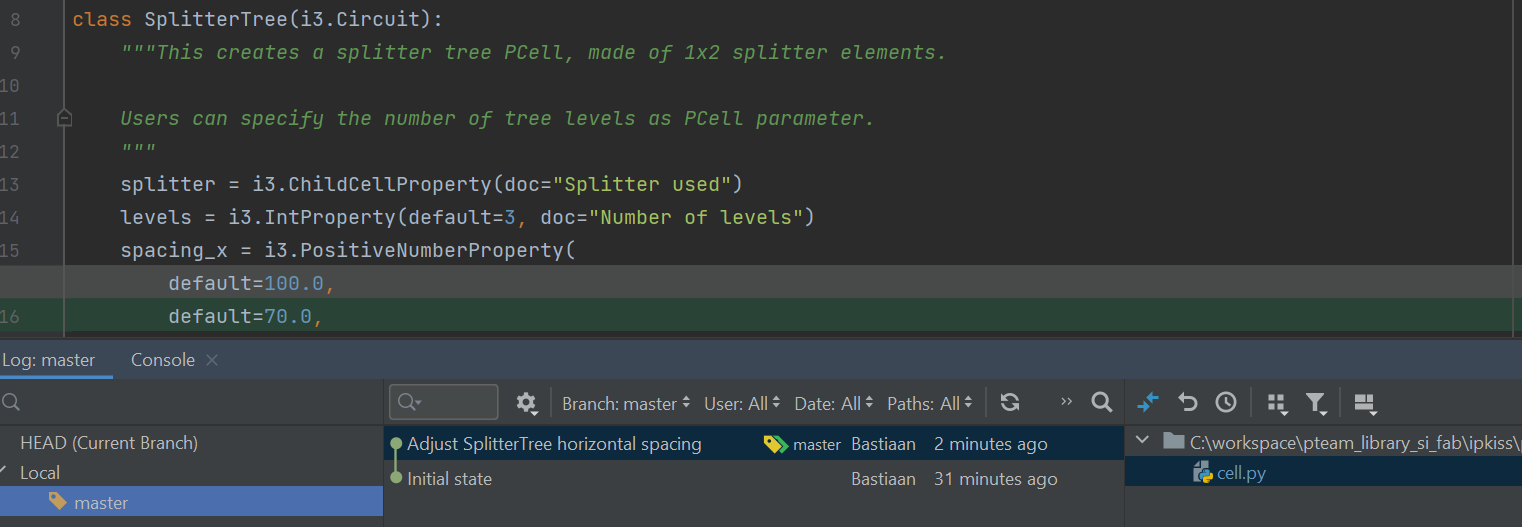
PyCharm’s Git tool window displaying the commit history with multiple commits.
You can view the changes by selecting the latest commit and double-clicking on cell.py. Alternatively, select the two commits while holding Ctrl, right-click and choose Compare Versions.
Saving changes via the terminal is a three-step process:
git add: Stage your changes that you intend to be in your commit. Everything not staged will stay locally.
git commit: Commit the staged changes. It’s good practice to add a descriptive message.
git push: Push the commit to the remote branch. Now your changes are visible to your colleagues.
The previous commit corresponds to executing:
git add ipkiss/pteam_library_si_fab/components/splitter_tree/cell.py
git commit -m "Adjust SplitterTree horizontal spacing"
git push
3.6.1.4. Undoing changes in PyCharm
Because we’re consistently keeping track of our work, it’s easy to revert to previous commits. To view a previous state of the codebase, select a commit and click on Checkout Revision ‘…’.
To undo changes, you can right-click a commit in the Git history log:
Revert commit: The safest option. Produces a new commit that reverts the changes in the original commit.
Undo commit: Undoes the last commit but keeps the file changes locally.
Drop commit: Removes a commit and its changes. This can rewrite the commit history and should be used with care.
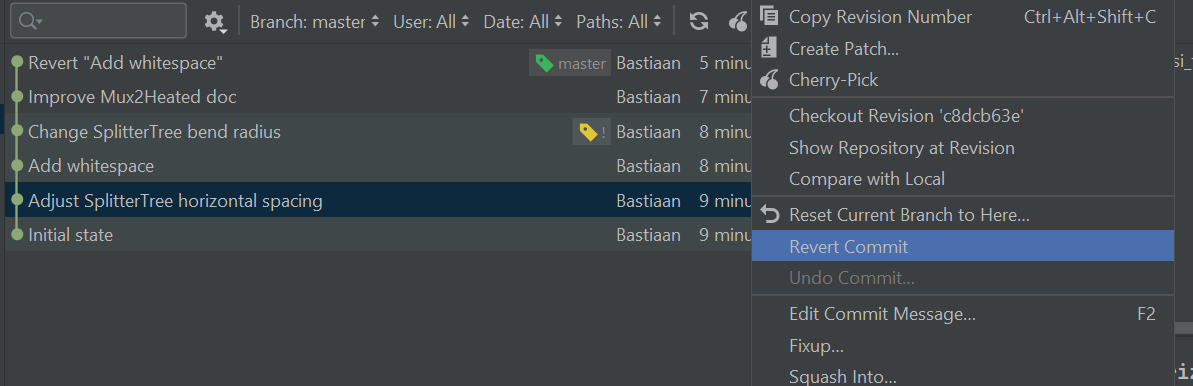
PyCharm’s Git history context menu showing options to revert, undo, or drop a commit.
3.6.1.5. Resolving conflicts
When you are working in a team, it is likely that you will run into a merge conflict. This happens when multiple people change the same part of a file. When you pull the latest changes from the remote repository, Git will notify you of the conflict and mark the problematic area in the file. PyCharm will also show the file in the merge state. The simplest way to resolve a conflict is to decide which version to keep.